Creating well pads
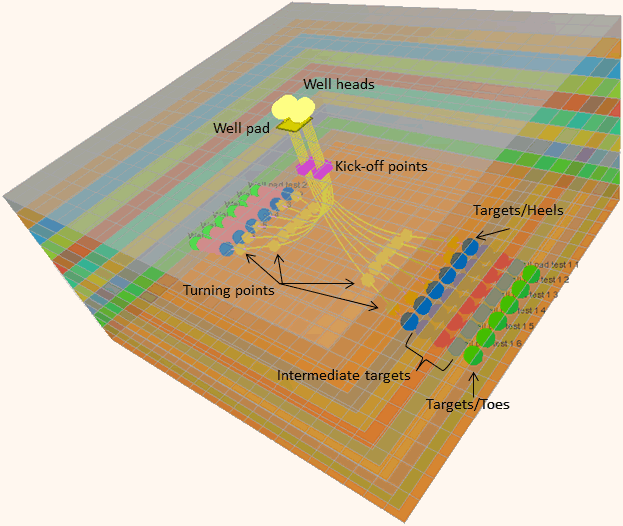
Well pad in transparent Easy Grid click to enlarge
A well pad is a set of horizontal wells from one central well pad location. These are particularly useful for modeling unconventional reservoirs, especially tight gas plays, in which extensive hydraulic fracture stimulation is required and in which modeling of the fractures is essential for accurate and reliable assessment of the reservoir’s potential and expected production behavior.
Operators want to cover a maximum acreage with a minimum number of wells. To limit the environmental impact and to cut cost, well pads are used to drill a number (typically 10 -20) of wells, where the well heads are located closely together (5 - 50m). The well pad location also has surface facilities such as separators, manifolds, etc.
Well pad planning is highly flexible and includes:
- Simple options to move the well pad and wells or to move the well pad while wells remain in the same position.
- Planning wells within an areal boundary (lease boundary, reservoir maps).
- Wells targeting multiple reservoir zones.
- Optimization of horizontal well length with adaptable heel target position.
- Anti-collision offset to prevent wells from interfering with one another.
There are two ways you can create a well pad:
- Using the Create Well Pad form (plan > Well Pads > Create Well Pad).
- Graphically, using tools on the floating tool palette.
Creating a well pad using the Create Well Pad form
Open the Create Well Pad form
Click OK to create the new well pad or set an existing one to active
Creating a well pad graphically
- Go to Workspace > Tools > Editing Tools to open the floating palette.
- Select the create well pad
 tool.
tool. - Set the required defaults on the Drilling Constraints form (plan > Well Pads > Drilling Constraints) - see Drilling Constraints for details.
- Optionally, create one or more well target zones using the Target Zone form (plan > Well Pads > Target Zone) - see Creating well target zones for details.
- Click in your 3D view at the location of your new well pad.
-
On the Well Pad Preliminary form that opens, enter the required data and click OK.
-
Inspect and edit the data of the well pad if necessary.
- Open the Refine Well Pad form (plan > Well Pads > Refine Well Pad) to inspect the values for the individual well plans of the well pad.